
Model/View framework tutorial 
Qt’s Model/View framework is used to “separate data from views in widgets that handle data sets”. It is an efficient solution when displaying data in containers such as lists, tables or trees.
These containers do not use standard widgets to display the data. Instead, they handle the underlying data directly from the model. Most common containers are QListView, QTableView and QTreeView.
Qat can interact with Model/View objects in two ways:
by using virtual widgets to access each item like any other widget
by directly manipulating the data in the model
Table of contents 
Virtual widgets
Virtual widgets are wrappers around model items that provide a widget-like interface to be used with API functions such as wait_for_object(), mouse_click(), type_in() and others.
To access a virtual widget, you need to provide a compatible object definition i.e a definition with its ‘container’ field set to the Q*View container widget and its ‘row’ (and optionally ‘column’ for tables and trees) field set to the index of the data.
‘row’ and ‘column’ fields are zero-based indexes
Example:
item_definition = {
   'container': {'objectName': 'myContainer'},
   'row': 5
}
item = qat.wait_for_object(item_definition)

# Select the item
qat.mouse_click(item)

# Take a screenshot of the item
image = qat.grab_screenshot(item)
assert image.width == item.globalBounds['width']
image.save('./screenshot.png')
The virtual widget returned by wait_for_object() is of type ModelIndexWrapper which provides the following custom functions and properties:
row (read-only) : The row index of the item
column (read-only) : The column index of the item
text : The displayed text of this item (corresponds to Qt::DisplayRole)
color : The text color of this item (corresponds to Qt::ForegroundRole)
QVariant data(int role = Qt::DisplayRole) : Returns the value of this item for the given role
bool setData(const QVariant& value, int role = Qt::DisplayRole) : Changes the value of this item for the given role
void ScrollTo() : Automatically scrolls the container to make this item visible
QListView
A QListView is a simple non-hierarchical list. By default, items can be edited by double-clicking on them:

item_definition = {
   'container': {'type': 'QListView'},
   'row': 15
}
item = qat.wait_for_object(item_definition)

# Automatically scroll to make the item visible
item.ScrollTo()

# Edit the item
qat.double_click(item)
qat.type_in(item, 'hello')

# Close the editor
qat.type_in(item, '<Enter>')
assert item.text == 'hello'

QTableView
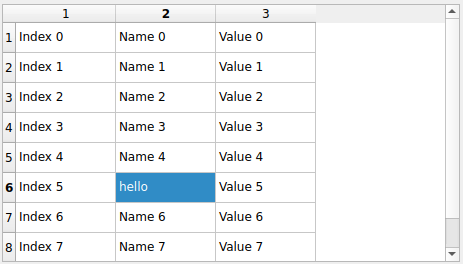
A QTableView is similar to a QListView but can display multiple columns of data. The column index can be added to the item definition. If omitted, the first column (index = 0) is used.
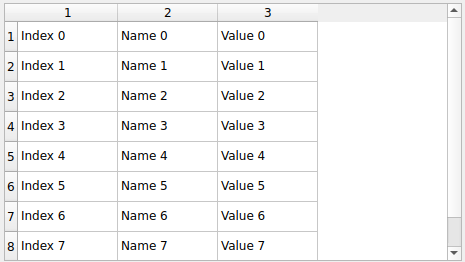
item_definition = {
   'container': {'type': 'QTableView'},
   'row': 5,
   'column': 1
}
item = qat.wait_for_object(item_definition)
assert item.row == 5
assert item.column == 1

# Edit the item
qat.double_click(item)
qat.type_in(item, 'hello')

# Close the editor
qat.type_in(item, '<Enter>')
assert item.text == 'hello'
QTreeView
QTreeView is more complex as it displays hierarchical data as long as multiple columns.
Parent/child relationship of the data is managed by the ‘container’ field of items’ definition.
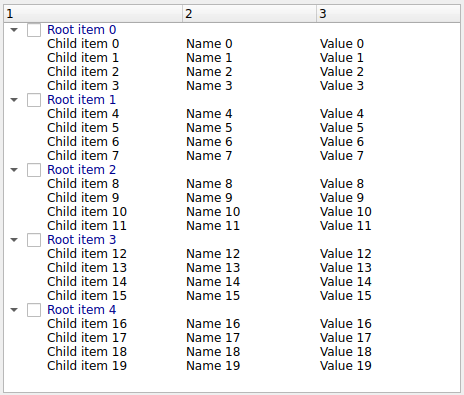
root_item_definition = {
   'container': {'type': 'QTreeView'},
   'row': 2
}
root_item = qat.wait_for_object(root_item_definition)
assert root_item.text == 'Root item 2'

# Third child of root_item is child item 10
child_item_definition = {
   'container': root_item_definition,
   'row': 2,
   'column': 2
}
child_item = qat.wait_for_object(child_item_definition)
assert child_item.text == 'Value 10'
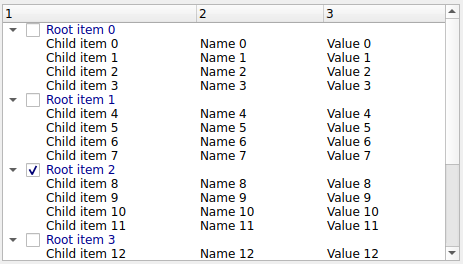
Clicking on the left side of a root item will activate its checkbox:
# Roles are defined in Qt::ItemDataRole
checked_state_role = 10
unchecked_state = 0
checked_state = 2

assert root_item.data(checked_state_role) == unchecked_state

# Assumes a square box on the left of the item
offset = root_item.globalBounds['height'] / 2
qat.mouse_click(root_item, x=offset, y=offset)

assert root_item.data(checked_state_role) == checked_state
Result:
Data model
Another way to interact with Model/View objects is to manipulate the underlying data model. The data model associated to a Q*View can be accessed with their model property.
QModelIndex
Each item of the model is identified by an instance of QModelIndex. These indexes are created by the model.index() function and the associated data is accessed with the model.data() function:
tree_definition = {
   'type': 'QTreeView'
}
tree = qat.wait_for_object(tree_definition)
model = tree.model

# model.index() takes the row and column indexes as arguments
root_item = model.index(2, 0)
assert model.data(root_item) == 'Root item 2'

# To access child items in a tree, the parent index is used
child_item = model.index(3, 1, root_item)
# Fourth child of Root item 2 is Child item 11
assert model.data(child_item) == 'Name 11'
Roles
Each item of the model can contain data for multiple roles. The default role is the DisplayRole which represents the text displayed in the container.
Other roles include:
FontRole (the font used to display the text of the item)
ForegroundRole (the QBrush or the color used to render the text)
CheckStateRole (indicating whether the item is checked or not)
Please refer to Qt documentation (Qt::ItemDataRole) for a complete list.
Data for each role can be read with the model.data() function and changed with the model.setData() function.
# DisplayRole (default)
model.setData(child_item, 'hello')
assert model.data(child_item) == 'hello'

# CheckStateRole
check_role = 10
unchecked = 0
partially_checked = 1
checked = 2
# Items are unchecked by default
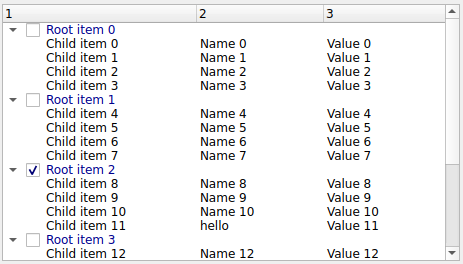
assert model.data(root_item, check_role) == unchecked

model.setData(root_item, checked, check_role)
assert model.data(root_item, check_role) == checked
Result:
Selection
Item selection is managed by a dedicated model, accessible with the selectionModel property.
tree_definition = {
   'type': 'QTreeView'
}
tree = qat.wait_for_object(tree_definition)
model = tree.model
# Create a model index
root_item = model.index(2, 0)
child_item = model.index(3, 1, root_item)

selectionModel = tree.selectionModel
# Items are not selected by default
assert not selectionModel.isSelected(root_item)
assert not selectionModel.isSelected(child_item)

# Change selection
selected_state = 3
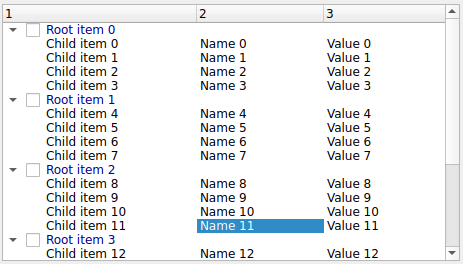
selectionModel.select(child_item, selected_state)
assert selectionModel.isSelected(child_item)
assert selectionModel.currentIndex == child_item
Result:
Other functions are available, please refer to the Qt documentation for the QItemSelectionModel class.