
Menus and actions tutorial 
Menus are typically displayed in a menu bar or as context menus opened by right-clicking or by using a dedicated keyboard key. Both types of menu use the same underlying implementation and can be accessed in the same way with Qat.
However, QtQuick/QML and QWidget frameworks offers two different implementations of such menus that require slightly different approaches when writing tests.
This tutorial shows how to interact with each type of menu using the Qat API.
Table of contents 
QML menus
QML menus are built with standard components: each Menu contains child MenuItems displayed in a ListView. All of these can be accessed like any other QML component with the Qat API.
Here is an example of a pull-down menu:
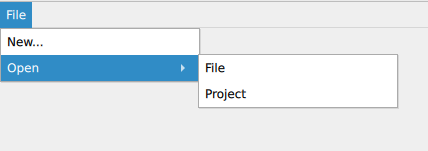
ApplicationWindow
{
   objectName: "appWindow"

   menuBar: MenuBar
   {
      Menu
      {
         title: "File"
         objectName: "fileMenu"
         MenuItem
         {
            text: "New..."
         }
         Menu
         {
            title: "Open"
            objectName: "openSubMenu"
            MenuItem
            {
               text: "File"
            }
            MenuItem
            {
               text: "Project"
            }
         }
      }
   }
   // Other contents
}
We can test the “Open project” feature by clicking on the corresponding menu:
menu_bar = {
   'type': 'MenuBar'
}

# Open the 'File' menu
file_item = {
   'container': menu_bar,
   'text': 'File',
   'type': 'MenuBarItem'
}
qat.mouse_click(file_item)

# Open the submenu
file_menu = {
   'objectName': 'fileMenu'
}
open_submenu = {
   'container': file_menu,
   'text': 'Open',
   'type': 'MenuItem'
}
qat.mouse_click(open_submenu)

# Click on the 'Project' menu
sub_menu = {
   'objectName': 'openSubMenu'
}
project_menu = {
   'container': sub_menu,
   'text': 'Project',
   'type': 'MenuItem'
}
qat.mouse_click(project_menu)
There are two important things to consider when interacting with QML menus:
When identifying a MenuItem or MenuBarItem by its text, it is usually required to add its ‘type’ property too. The reason is that for each Menu[Bar]Item, Qt also creates a child IconLabel with the same ‘text’ property. Adding the ‘type’ property allows Qat to find the desired item.
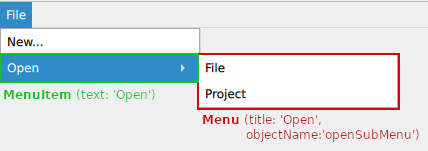
When creating a submenu, Qt automatically adds a MenuItem to its parent menu with its ‘text’ set to the ‘title’ of the Menu component. This means that to open the submenu, we need to find and click on the generated MenuItem and not on the Menu component. Here is a visualization of the previous example:
QWidget menus
Contrary to QML implementation, QWidget’s menus do not use standard widgets to display each item.
To allow interacting with such items, Qat creates virtual widgets wrapping each menu item and providing a widget-like interface to be used with API functions such as wait_for_object(), mouse_click() and others.
Here is an example of a pull-down menu:
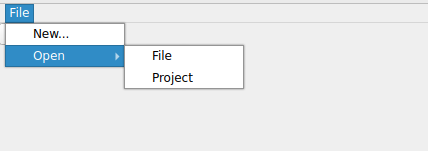
// Assuming current class inherits from QMainWindow
auto* menuToolBar = menuBar();

auto* fileMenu = menuToolBar->addMenu("File");
fileMenu->setObjectName("fileMenu");
fileMenu->addAction("New...");

auto* openMenu = fileMenu->addMenu("Open");
openMenu->setObjectName("openSubMenu");
openMenu->addAction("File");
openMenu->addAction("Project");
Thanks to Qat’s virtual widgets, we can write tests in a very similar way to the QML version (although note that the ‘type’ property is not needed in item definitions):
menu_bar = {
   'type': 'QMenuBar'
}

# Open the 'File' menu
file_item = {
   'container': menu_bar,
   'text': 'File'
}
qat.mouse_click(file_item)

# Open the submenu
file_menu = {
   'objectName': 'fileMenu'
}
open_submenu = {
   'container': file_menu,
   'text': 'Open'
}
qat.mouse_click(open_submenu)

# Click on the 'Project' menu
sub_menu = {
   'objectName': 'openSubMenu'
}
project_menu = {
   'container': sub_menu,
   'text': 'Project'
}
qat.mouse_click(project_menu)
Virtual menu items are created when a definition includes a ‘container’ property pointing to a QMenu or QMenuBar instance and a ‘text’ or ‘objectName’ property identifying a specific menu item.
The virtual items returned by wait_for_object() are of type MenuWrapper which provides the following read-only properties:
text : The text of the menu item.
visible : The “visible” property of the parent menu.
enabled : The “enabled” property of the associated action.
checked : The “checked” property of the associated action.
action : The associated action which can be used to access other properties and methods.
Also note that if a menu’s text contains an ampersand ‘&’ shortcut, the ‘&’ is optional in its Qat definition.
For example if a menu is defined as follows:
openMenu->addAction("&File");
Then these two definitions will work:
# Use visible text only
file_menu_1 = {
   'container': sub_menu,
   'text': 'File'
}
qat.mouse_click(file_menu_1)

# Include '&' shortcut
file_menu_2 = {
   'container': sub_menu,
   'text': '&File'
}
qat.mouse_click(file_menu_2)
Actions
It is also possible to trigger actions directly, without using the associated menus.
QML
Here is a simple QML example with a single action:
Menu
{
   title: "Open"
   objectName: "openSubMenu"
   Action
   {
      text: "File"
      onTriggered: console.log("Opening file...")
   }
}
The action can be explicitly triggered:
sub_menu = {
   'objectName': 'openSubMenu'
}
open_file_action = {
   'container': sub_menu,
   'text': 'File',
   'type': 'Action'
}
action = qat.wait_for_object_exists(open_file_action)
action.trigger()
QWidgets
Here is an example adding a QAction to an existing menu:
auto* openMenu = fileMenu->addMenu("Open");
openMenu->setObjectName("openSubMenu");

auto* openFileAction = new QAction("File", openMenu);
QObject::connect(openFileAction, &QAction::triggered, []()
{
   std::cout << "Opening file..." << std::endl;
});
openMenu->addAction(openFileAction);
The action can be explicitly triggered:
sub_menu = {
   'objectName': 'openSubMenu'
}
open_file_action = {
   'container': sub_menu,
   'text': 'File',
   'type': 'QAction'
}
action = qat.wait_for_object_exists(open_file_action)
action.trigger()