
Architecture 
Overview
Qat utilizes DLL injection to load a library into the target application. Once injected, this library initiates a TCP server, exposing all Qt objects via custom requests. The Python client leverages this server to offer advanced features such as object discovery, property access, and event simulation.
Table of contents 
DLL injection
DLL injection is a commonly used technique on various operating systems.
For Windows, detailed information can be found on this site.
Essentially, a process can create a thread in another process, which can then load any DLL into the target process using the LoadLibrary function.
On linux, Qat utilizes the LD_PRELOAD environment variable to load specified libraries before others when an application starts.
In both cases, the injected library determines the Qt version of the application and dynamically loads the corresponding Qat server library using LoadLibrary or dlopen.
The server library then initiates a TCP server on an available port, enabling any process to communicate with the tested application.
TCP server
The server employs a QTcpServer, initiated upon library loading. It listens on any available port on the local host, with each application instance utilizing a distinct port number. This enables the Qat client API to connect to multiple applications concurrently. Upon starting, the server writes the port number and current process ID to a text file for client identification. Leveraging the Qt Meta Object framework, the server exposes all objects and their properties.
Plugins
Qt applications may use different widget frameworks, such as QWidgets and QtQuick (QML), and interact with native widgets. Depending on the application and platform, some libraries may not be available at runtime, potentially causing the Qat library to fail to load. For example a QWidget-based application may not redistribute any QtQuick library.
To address this, Qat employs a plugin architecture that dynamically loads available frameworks at runtime. Each plugin provides a unified abstraction layer over the supported framework. Currently, there are three plugins: QWidget, Qml, and WindowsNative:
QWidget: Supports all QWidgets as well as virtual widgets allowing interaction with the Model/View framework and Menu elements.
Qml: Supports QtQuick widgets, including Qt3d elements.
WindowsNative: Provides virtual widgets wrapping native Windows components using the WinAPI. Mostly used for native dialogs.
Each plugin is also responsible to implement an ObjectPicker to be used with the Spy user interface. The ObjectPicker allows to highlight and select widgets from the application’s UI hierarchy.
Project hierarchy
Injector
DLL injector application (Windows only)
The (small) process used to inject the Injector library into the tested application. It is composed of a single main_exec.cpp file and uses the Windows API to find the main window of the application then creating a remote thread to inject the Qat libraries.
For easier packaging / distribution, it is important that this program does not depend on any other library.
Injector library
This library has one implementation for each supported platform. Once loaded by the injector application or the LD_PRELOAD mechanism, it calls the qVersion() function that is part of every Qt application. Based on this version, it will then load the corresponding Server library.
Server
The library containing the TCP server and all the code required to execute client’s requests. The class hierarchy is as follows:
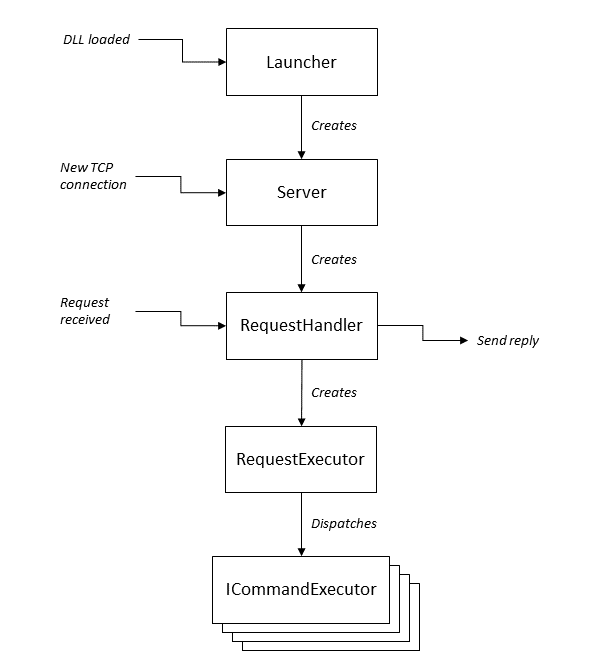
Requests are in Json format, with a small header containing the size of the request.
The ICommandExecutor interface is implemented by various classes that handle different types of requests. All CommandExecutors inherit from BaseCommandExecutor which provides functions to find objects and to store them in a cache when needed:
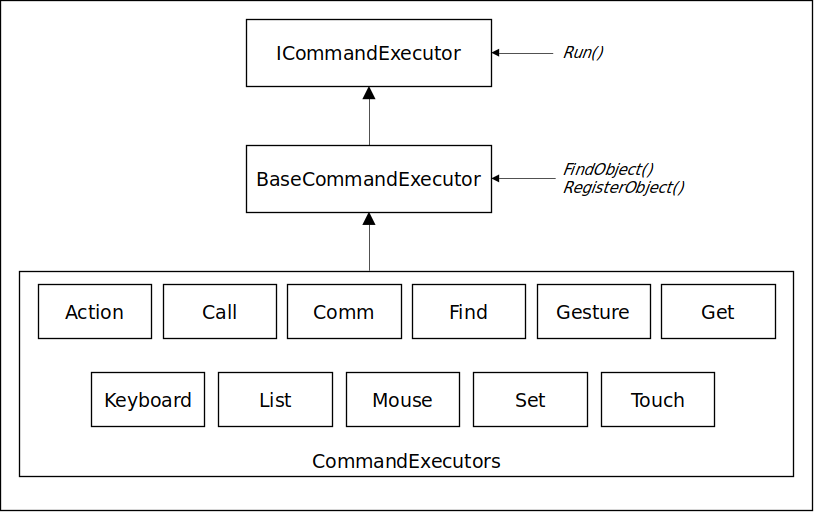
Since the Server depends on Qt libraries, it must be built for each supported Qt version.
ActionCommandExecutor
Enables or disables the ObjectPicker, takes screenshots of applications and widgets, and locks or unlocks the application.
CallCommandExecutor
Calls a method on the requested object through Qt’s MetaObject system. The logic of parsing and converting the arguments and calling the method is performed by the MethodCaller class. The conversion between Json and QVariant is provided by functions in QVariantToJson.
CommCommandExecutor
Initializes and terminates the TCP communication form the library to the Python API. Establishes or destroys connections between Qt’s signals and Python callbacks (used for connections and bindings in the API).
FindCommandExecutor
Uses the findObject() method of BaseCommandExecutor to find the object corresponding to the given definition.
GestureCommandExecutor
Simulates native gesture events like pinch and flick. This is for advanced use as gestures are usually simulated with the TouchCommandExecutor (see below).
GetCommandExecutor
Returns the value of the requested property of an object. Also handles “special” properties (i.e that are not part of the MetaObject system) such as: parent, children, id, …
KeyboardCommandExecutor
Simulates typing and shortcut events and sends them to the Qt window containing the requested object. Object will be given the Active Focus too.
Note: Some events will not be sent properly if the main window is in the background due to OS restrictions. Note: If an event was not accepted by any object, an error will be returned.
ListCommandExecutor
Returns the list of all supported methods or properties of the requested object, along with their current values. Can also return other global elements such as the top-level windows or current Qt version.
MouseCommandExecutor
Simulates mouse events and sends them to the Qt window containing the requested object.
Note: If an event was not accepted by any object, an error will be returned.
SetCommandExecutor
Changes the value of the requested property of an object. Will return an error if the property could not be changed (e.g. property is read-only or final value does not correspond to the requested one).
TouchCommandExecutor
Simulates touch events and sends them to the Qt window containing the requested object.
Note: If an event was not accepted by any object, an error will be returned.
IObjectPicker
Interface for all ObjectPicker implementations. Implementations are provided by plugins for each supported widget framework. When enabled, an ObjectPicker will highlight the widget currently under the mouse cursor by displaying a sermi-transparent rectangle overlay above it.
It will also show the object’s type and objectName (if available) in a tooltip.
The object under the mouse cursor is identified by using functions from WidgetLocator.
When the highlighted object is clicked (without holding the CTRL key) it is stored in the pickedObject property of the ObjectPicker. The Python API can then access this object and all its properties.
Images
When a screenshot of a widget is taken with the grab_screenshot API function, a QImage object is created that contains the image data of this screenshot.
Since QImage does not inherit from QObject, it cannot be accessed through the MetaObject system.
Qat uses custom wrappers to expose properties and functions of an Image: ImageWrapper.
These wrappers are stored in a static queue with a maximum size of 10 to avoid using too much memory in the tested application. So the 11th screenshot will replace the 1st one, the 12th screenshot will replace the 2nd one, and so on. Old screenshots are not lost though, since their contents are saved to a temporary file and can be automatically reloaded when needed.
Client
The Python client communicating with the Qat server. It is the main API of Qat. It can be used for Python and BDD tests (with Behave for example).
Public API
The public API is composed of the following files:
qat.py: contains all the public API functions. The implementation of each function is delegated to multiple internal files (see below).
qt_types.py: contains classes corresponding to Qt common types such as QColor, QFont, QRectangle, etc. This allows Python scripts to use these types as method arguments or property values.
report.py: provides functions to add entries to the test report.
test_settings.py: Loads setting from the testSettings.json file in the current folder and make values available to Python scripts.
bdd_hooks.py: contains functions intended to be called by environment.py when using Behave. The main role of these hooks is to generate the general structure of the XML test report: open/close XML tags for each test, feature, scenario and step, and add appropriate timestamps.
Internal implementation
The API functions defined in qat.py are implemented by internal files. The calls are grouped by category in separate files in the internal subfolder:
app_launcher.py: Functions to start, close or attach to an application.
application_context.py: Defines the ApplicationContext class that handles the lifecycle of an application.
binding.py: Implements the Binding class that handles connections and callbacks between C++ properties and Python variables.
communication_operations.py:
debug_operations: Functions to manipulate the ObjectPicker from Python code. Intended for testing and debug purposes since the ObjectPicker is normally used with the corresponding Spy GUI. Also provides functions to lock and unlock the GUI.
find_object.py: All functions used to locate objects: wait_for_object*(), find_all_objects(), list_top_windows(), …
gesture_operations.py: Provides high-level gesture functions such as pinch(), flick(), etc.
keyboard_operations.py: Contains the keyboard and shortcut functions.
mouse_operations.py: Contains the click() and drag() functions that are used by all mouse-related API calls. Also defines the Button and Modifier enums.
screenshot_operations.py: Contains the takeScreenshot() and grabScreenshot() functions.
synchronization.py: Contains the wait_for_property() function used by API functions such as wait_for_property_value() and wait_for_property_change().
Other internal features are implemented in various modules of the internal subfolder:
tcp_client.py: Connects to Qat server and sends json commands through TCP.
tcp_server.py: Opens a TCP server to handle callbacks from C++ bindings.
global_constants.py: Contains default constant values (e.g. timeouts)
xml_report.py: Asynchronously writes a test report in XML format. Mostly used by BDD hooks.
preferences.py: Reads and writes the preferences.json file from/to the user’s personal folder.
qt_object.py: Defines the QtObject class. QtObjects are the ones returned by waitForObject[Exists]() for example. Each object contains a copy of its original definition and a reference to its ApplicationContext. The special functions __getattr__ and __setattr__ use the TcpClient to access remote “attributes”. So if object is a QtObject, object.property will return the property value of this object in the tested application. The returned property can be a native value for simple types (e.g. bool, int, array…), a QtCustomObject for complex types (e.g QVector3D, QColor,…) or another QtObject.
Note that __getattr__ is also called by Python when a method is used. In this case it returns a QtMethod object.
qt_custom_object.py: Defines the QtCustomObject class. This class represents Qt objects that have some members which are not available through the MetaObject system. For example, QColor has red, green and blue members, QVector3D has x, y and z members, etc. For a complete list of supported types, refer to QVariantToJson.cc. QtCustomObject uses custom serialization and holds the values of the underlying object at the time of its construction. In other words, these objects are “const” and changes on the remote object will not be reflected automatically. For example if the x component of a QVector3D changes in the tested application, calling someVector.x in Python will return the initial value, not the current one. To retrieve the current value, the entire QtCustomObject must be requested again.
qt_method.py: Defines the QtMethod class. The special method __call__ is overridden so when any method is called on a QtObject, it will be redirected to the tested application. The method will then be executed by the Qt MetaObject system and the result returned as a native value(e.g. int, string, bool, float, list), a QtCustomObject or a QtObject.
Note: not all methods are supported: they must have at most 10 arguments, and each argument must be convertible to/from QVariant.
GUI
The GUI is based on CustomTkinter. All source files are in the client/qat/gui folder. It is composed of the ApplicationManager and the Spy windows.
The launcher.py file allows users to open the GUI by typing the “qat-gui” command in a terminal.
Tests
test/QmlApp
QmlApp is a QML-based application containing various widgets and used by unit and BDD tests of the Qat project.
test/WidgetApp
WidgetApp is a QWidget-based application containing various widgets and used by unit and BDD tests of the Qat project.
test/pytests
Unit tests of this project, executed with Py.Test. Tests are executed with both QmlApp and QWidgetApp and for each supported Qt version.
test/behave
Some BDD tests examples to demonstrate the integration of QAT with the Behave framework.
Configuration and build system
The build system is hosted on Gitlab. The pipelines are defined in .gitlab-ci.yml at the root of the project. Other specific configuration files are available in the .gitlab folder.
Tool integration
Configuration files used by other development tools (Pycov, Pylint, Doxygen, etc) are in the config folder.
Documentation
In addition to Doxygen and Python docstrings, all documentation can be found in the doc folder. During build, it is also published to Readthedocs by Sphinx. Related configuration is is the sphinx folder.
Packaging
Qat packages are generated and uploaded to PyPI by a Gitlab pipeline when a tag is created in the repository.
Packages include the template folder which contains example tests and configurations. These are used by the qat-create command to create new test suites on the user’s computer.